TOP Free Proxy List


How to Set Up a Proxy on PC and Mobile (Step-by-Step Guide)
Published 16/08/2026 · Updated 11/10/2026
Configuring a proxy sounds technical, but the actual steps are short — on every platform, you're really just telling the operating system, browser, or app three things: the proxy's address, its port, and (sometimes) a username and password. This guide walks through exactly where to find those settings on the devices and browsers people use most, including a quick option for the command line, plus how to confirm the proxy is actually working once it's set up and how to fix the most common problems.
Before you start
You'll need a proxy's IP address and port before any of the steps below will work. Grab one from the free proxy list — filter by protocol and country if the task needs a specific one — and note the IP and port shown in the table. If the proxy requires authentication, you'll also need a username and password (most free proxies don't, but some SOCKS5 entries do).
It's worth testing the proxy before configuring anything, since free proxies can go offline unpredictably. Paste the IP:port into the Proxy Checker first — if it comes back "alive," you're good to continue; if not, grab a different one from the list rather than troubleshooting a dead proxy later. This one step saves the most common frustration people run into: assuming a setup mistake when the real issue is that the proxy simply isn't online anymore.
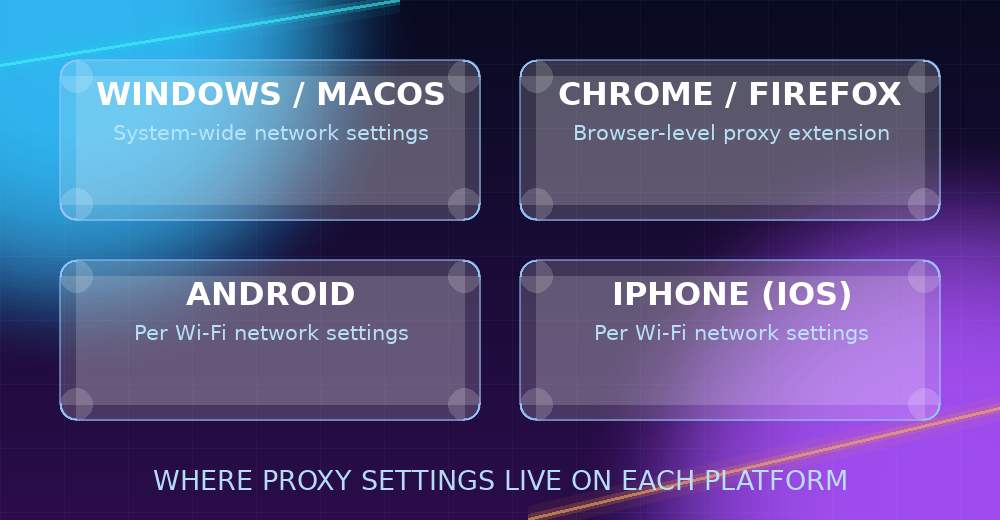
One more thing worth deciding upfront: do you want the proxy applied system-wide (every app on the device) or just inside one browser? System-wide is simpler to set up once, but affects everything, including apps you might not have intended to route through it. Browser-only settings take a bit more digging to find but keep the change contained. The sections below cover both.
How to set up a proxy on Windows
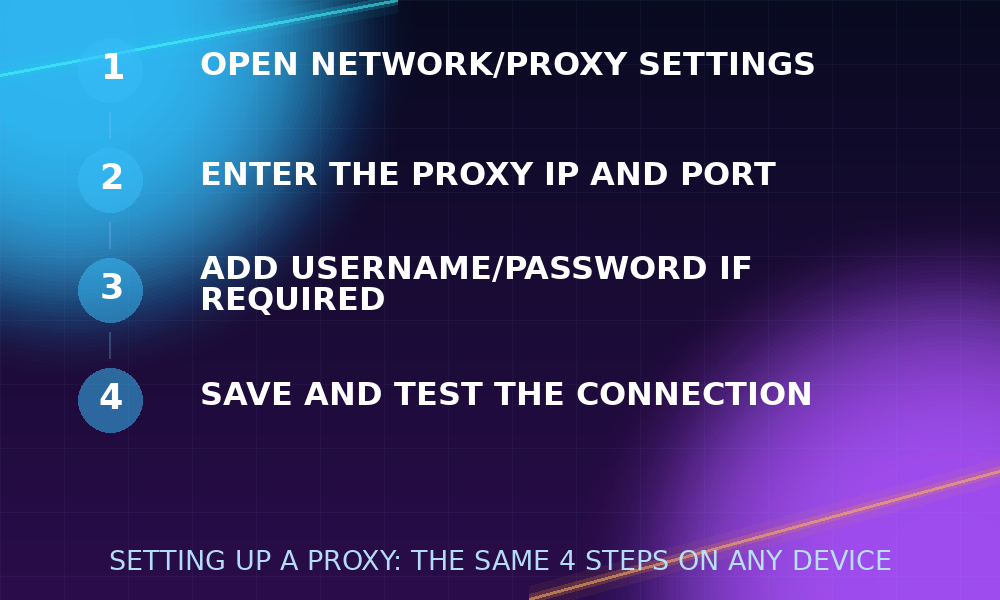
- Open Settings → Network & Internet → Proxy.
- Under "Manual proxy setup," turn on Use a proxy server.
- Enter the proxy's IP address in the "Address" field and the port number in the "Port" field.
- Optionally, use the "Don't use the proxy server for local (intranet) addresses" checkbox if you also connect to internal/local network resources — otherwise local traffic gets routed through the proxy too, which usually isn't what you want.
- Click Save.
This applies the proxy system-wide for apps that respect Windows' proxy settings (most browsers do; some standalone applications have their own separate proxy field instead and ignore this setting entirely). To turn it off later, just switch "Use a proxy server" back off — Windows remembers the address and port you entered, so re-enabling it later doesn't require re-typing anything.
How to set up a proxy on macOS
- Open System Settings → Network, and select your active connection (Wi-Fi or Ethernet).
- Click Details (or Advanced on older macOS versions), then the Proxies tab.
- Check the box for the protocol you're configuring — Web Proxy (HTTP), Secure Web Proxy (HTTPS), or SOCKS Proxy — and enter the server address and port in the fields that appear.
- If the proxy needs a username and password, check "Proxy server requires password" and enter them.
- Click OK, then Apply.
macOS lets you configure HTTP, HTTPS, and SOCKS proxies independently and simultaneously if needed, which is useful if different applications on your Mac expect different protocols.
How to set up a proxy in Chrome or Firefox
Chrome uses the operating system's proxy settings by default, so the Windows/macOS steps above will apply to it automatically — there's no separate Chrome-specific proxy menu on desktop. If you'd rather configure a proxy only for the browser (leaving the rest of the system unaffected), a lightweight proxy-switcher extension lets you enter the IP, port, and protocol without touching system settings — useful if you only need the proxy for specific tabs or tasks, or if you want to switch between several proxies quickly without reopening system settings each time.
Firefox has its own independent proxy settings, separate from the OS: go to Settings → search for "proxy" → Network Settings → Settings…, choose Manual proxy configuration, and enter the address and port for whichever protocol you're using (HTTP, SSL/HTTPS, or SOCKS — Firefox lets you set all of them at once, including a separate SOCKS host if you're using a SOCKS4/SOCKS5 proxy). There's also a "Use this proxy server for all protocols" checkbox that fills every field from the HTTP one, which is a quick option if you only have a single proxy to configure.
How to set up a proxy on Android
- Open Settings → Network & internet → Internet (or Wi-Fi).
- Tap the gear icon next to your connected Wi-Fi network.
- Tap Edit, then expand Advanced options.
- Under "Proxy," select Manual and enter the hostname and port.
- Tap Save.
Note that Android's built-in proxy setting is per Wi-Fi network and applies to HTTP traffic; it doesn't cover mobile data connections and doesn't offer SOCKS support without a dedicated proxy app. If you need the proxy to apply over cellular data too, or need SOCKS support on mobile, a dedicated proxy app from the Play Store is the more reliable route, since Android's system settings simply don't expose those options.
How to set up a proxy on iPhone (iOS)
- Open Settings → Wi-Fi, then tap the ⓘ next to your connected network.
- Scroll down to Configure Proxy and select Manual.
- Enter the server address and port.
- If authentication is required, toggle Authentication on and enter the username and password.
- Tap Save.
As with Android, this is a per-network HTTP proxy setting — it resets if you switch to a different Wi-Fi network or use cellular data, so it needs to be reapplied any time you change networks.
Setting a proxy from the command line
If you're working in a terminal rather than a browser, most command-line tools respect the standard http_proxy and https_proxy environment variables rather than any OS-level setting. On macOS/Linux:
export http_proxy="http://PROXY_IP:PORT"
export https_proxy="http://PROXY_IP:PORT"
Once set for a terminal session, tools like curl and wget will route through that proxy automatically. For a one-off request without setting an environment variable, curl also accepts a proxy directly: curl -x PROXY_IP:PORT https://example.com. For SOCKS proxies specifically, curl's -x flag accepts a scheme prefix, e.g. curl -x socks5://PROXY_IP:PORT https://example.com.
Troubleshooting common problems
- Pages won't load at all: Double-check the IP and port were entered correctly (a common mistake is transposing digits), and re-test the proxy with the Proxy Checker — it may simply have gone offline since you picked it.
- It worked, then stopped working: Free proxies aren't permanent — see How to Check If a Proxy Is Working (and Why It Stops Working) for why this happens and how to catch it quickly.
- Some apps use the proxy, others don't: Not every application respects system-wide proxy settings — some (especially command-line tools and certain desktop apps) need the proxy configured separately within the app itself, or via the environment-variable method above.
- The site looks broken or shows a CAPTCHA: Some sites actively detect and challenge known proxy/datacenter IP ranges; this is a property of that specific proxy or site, not a sign your setup is wrong. Trying a different proxy from the list, or one with a different anonymity level, often resolves it.
- You picked a SOCKS proxy but browsing doesn't work: Make sure you selected the SOCKS field specifically (not the HTTP field) in your OS or browser's proxy settings — entering a SOCKS proxy's address into an HTTP-only field won't work correctly.
- The connection is very slow: Check the proxy's response time on the proxy list or re-run it through the Proxy Checker — free proxies vary widely in speed, and swapping to a faster-rated one is usually simpler than troubleshooting the slow one.
Confirming the setup actually worked
After entering a proxy's address and port anywhere above, don't just assume it's active — confirm it. The most reliable way is to visit any "what's my IP" page in the browser or app you just configured: if the IP and location shown match the proxy rather than your own connection, the setup worked. If it still shows your real IP, double-check that you saved the settings (some menus require an explicit Save or Apply step separate from just filling in the fields) and that you're testing in the same browser or app you configured — a proxy set at the OS level won't apply to an app that manages its own separate proxy settings.
Working with more than one proxy
If a task needs to rotate between several proxies rather than use just one, manually re-entering settings each time gets tedious fast. Browser extensions built for proxy switching typically let you save a list of proxies and flip between them with one click, without re-opening system settings. For scripted or command-line workflows, the environment-variable approach above makes rotation straightforward too — just change the exported value before each run, or loop through a list of proxies in a script, checking each with the Proxy Checker first so you're only rotating through ones that are actually online.
Wrapping up
The setup steps are genuinely this short on every platform — the only real variable is picking a proxy that's actually online. Keep the proxy list filtered to your needed protocol and country, verify with the Proxy Checker before configuring anything, confirm the change actually took effect, and swap in a new one whenever the current one stops responding.